Sign in and navigate
Sign in
- Open the GeoTract address supplied by your administrator.
- Select Sign in and complete your organization's authentication prompt.
- Confirm that your name and organization appear at the upper right.
Where your organization uses Microsoft Entra ID, this is the same sign-in you use for Microsoft 365 — the same account, the same multi-factor prompt, and no separate GeoTract password to remember or reset.
What you can see and do comes from the roles your administrator assigns in Entra, not from a setting inside GeoTract. If a module or an action is missing, that is an access question for your administrator rather than a fault. Access to statutorily exempt records is granted separately from administrative access, so holding an administrator role does not by itself reveal exempt data.
Never share credentials or approve an unexpected authentication request. An authentication prompt you did not trigger should be declined and reported. The training screenshots use a development identity; production authentication may look different.
Find your way around
Signing in lands you on Overview, which states what needs attention across the modules you can open. It sits at the top of the left navigation, above the workspace groups. See Read the Overview.
Below it, the left navigation separates spatial work from focused work:
- Tracts, Work orders, Timber, Registers, Acquisition, and Planning share the map workspace.
- Documents, Field operations, Reporting, Disposition, and Board portal use full-width workspaces.
- Search modules finds a module. It is not the record search; search for records inside the module that owns them.
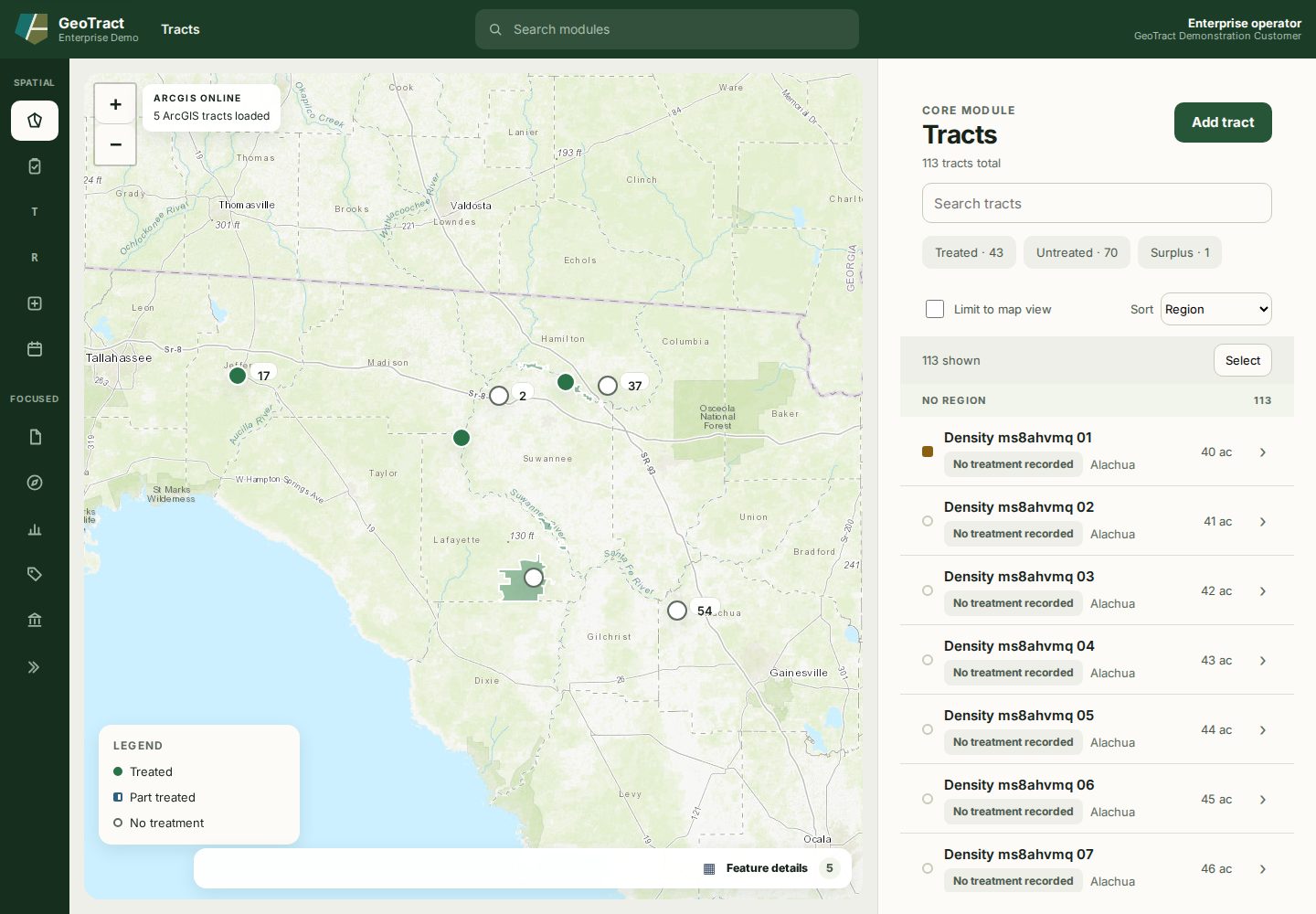
The selected navigation item is highlighted. Text labels are available to keyboard and assistive-technology users even when the rail is collapsed.
Most spatial list pages use the same pattern: map on the left, record workspace on the right, filters above the list, and a chevron to open a record. A record opens over the list and offers ← Back to…, Previous, and Next.
When an action succeeds, wait for the status message and confirm the visible record state changed. Do not assume that a click saved data.
Keyboard orientation
Use Skip to feature to move past the shell. Map markers support arrow keys and Enter, but the record list is the most reliable keyboard path to the full registry. Escape closes an open record; use the visible back control when a form contains unsaved work.
Sign out
Use your organization's sign-out control, especially on a shared device. Closing the browser alone may not end the identity-provider session.